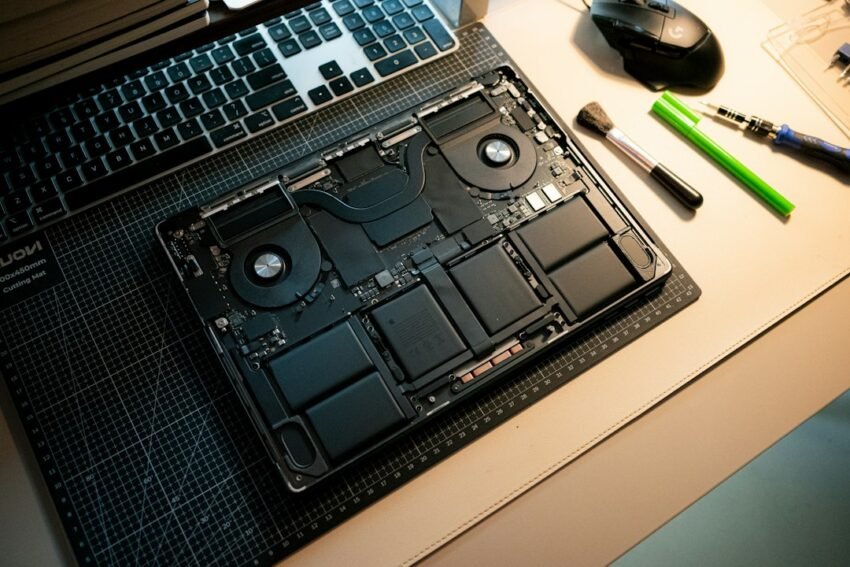
A laptop battery that drains quickly can interrupt work, study and travel. Before replacing it, it helps to understand what is using power and whether the battery itself is wearing out. This guide focuses on everyday habits for longer battery runtime. If your laptop suddenly loses charge, shuts down unexpectedly or has charging faults, read our 12-step laptop battery troubleshooting guide to investigate battery health and possible hardware causes.
1. Check battery usage first
On Windows, open Settings → System → Power & battery and review battery usage by app. Close apps that keep running in the background when you do not need them. Video editing, games, many browser tabs and video calls can use considerably more power than light tasks.
2. Reduce screen brightness and refresh rate
The display is one of the biggest power users. Lower brightness to a comfortable level, shorten the screen-off timer and, if your laptop supports it, switch to a standard refresh rate when high refresh is not needed.
3. Use the appropriate power mode
Select a balanced or energy-saving power mode when working away from a charger. Also check that Bluetooth, keyboard backlighting and other accessories are switched off when they are not required.
4. Review startup and background apps
Too many apps launching at startup can keep the processor active. In Windows, open Task Manager → Startup apps and disable only the programs you recognise and do not need at startup. Avoid disabling security or system components if you are unsure what they do.
5. Keep the laptop cool
Blocked vents, dust and soft surfaces can trap heat. Use the laptop on a hard, flat surface and keep air vents clear. If the laptop fan makes a loud or persistent noise becomes unusually hot during light use, the cooling system may need professional cleaning.
6. Check battery health
A battery loses capacity as it ages. On supported Windows laptops, you can generate a battery report by opening Command Prompt and running powercfg /batteryreport. Compare the design capacity with the full-charge capacity. A much lower full-charge capacity can indicate normal battery wear.
7. Install reliable system updates
Operating-system and manufacturer updates can resolve power-management issues. Install updates through Windows Update or the laptop manufacturer’s official support utility. Avoid driver-updater downloads from unfamiliar websites.
When should you replace a laptop battery?
Consider a professional battery inspection if runtime has dropped sharply, the laptop shuts down unexpectedly despite showing charge, the battery percentage jumps, or the device no longer charges correctly. A swollen battery is a safety warning: stop using and charging the laptop, do not press or puncture it, and arrange qualified service promptly.
Can a laptop battery be repaired?
In most modern laptops, the battery pack is replaced rather than repaired cell by cell. A technician should first check the battery, charging port, adapter and charging circuit so that the wrong component is not replaced.
Frequently asked questions
How long should a laptop battery last?
Runtime varies by model, battery age, screen brightness and workload. Compare your current runtime with what the device delivered when it was new rather than relying on one fixed number.
Is it okay to leave a laptop plugged in?
Most modern laptops manage charging electronically, but heat is still harmful to battery health. Use manufacturer battery-care or charge-limit features if available and keep vents unobstructed.
Why does my laptop battery drop quickly even when idle?
Background apps, connected devices, wake settings, poor signal and an aging battery can all contribute. Check battery usage and health before deciding on a replacement.
Need help with laptop battery or charging issues?
If your laptop still drains quickly after these checks, or it has charging faults, unusual heat or a swollen battery, arrange a professional inspection. The right diagnosis can help distinguish a worn battery from a charger, port or internal power issue.
1 thought on “7 Daily Habits to Make Your Laptop Battery Last Longer”