Laptop Fan Making Loud Noise? Here’s What’s Going On
If your laptop fan is making loud noise, you already know how annoying it gets — that constant whirring, grinding, or rattling sound that makes it hard to focus. This guide is for everyday laptop users who want straight answers without digging through tech forums or paying for a repair they might not need.
We’ll walk you through why your fan starts acting up in the first place, what warning signs mean trouble is brewing, and some quick fixes you can try right now at home. By the end, you’ll know exactly what to do — and whether it’s time to call in a pro.
Understand Why Your Laptop Fan Is Making Loud Noise
Dust and Debris Buildup Blocking Airflow
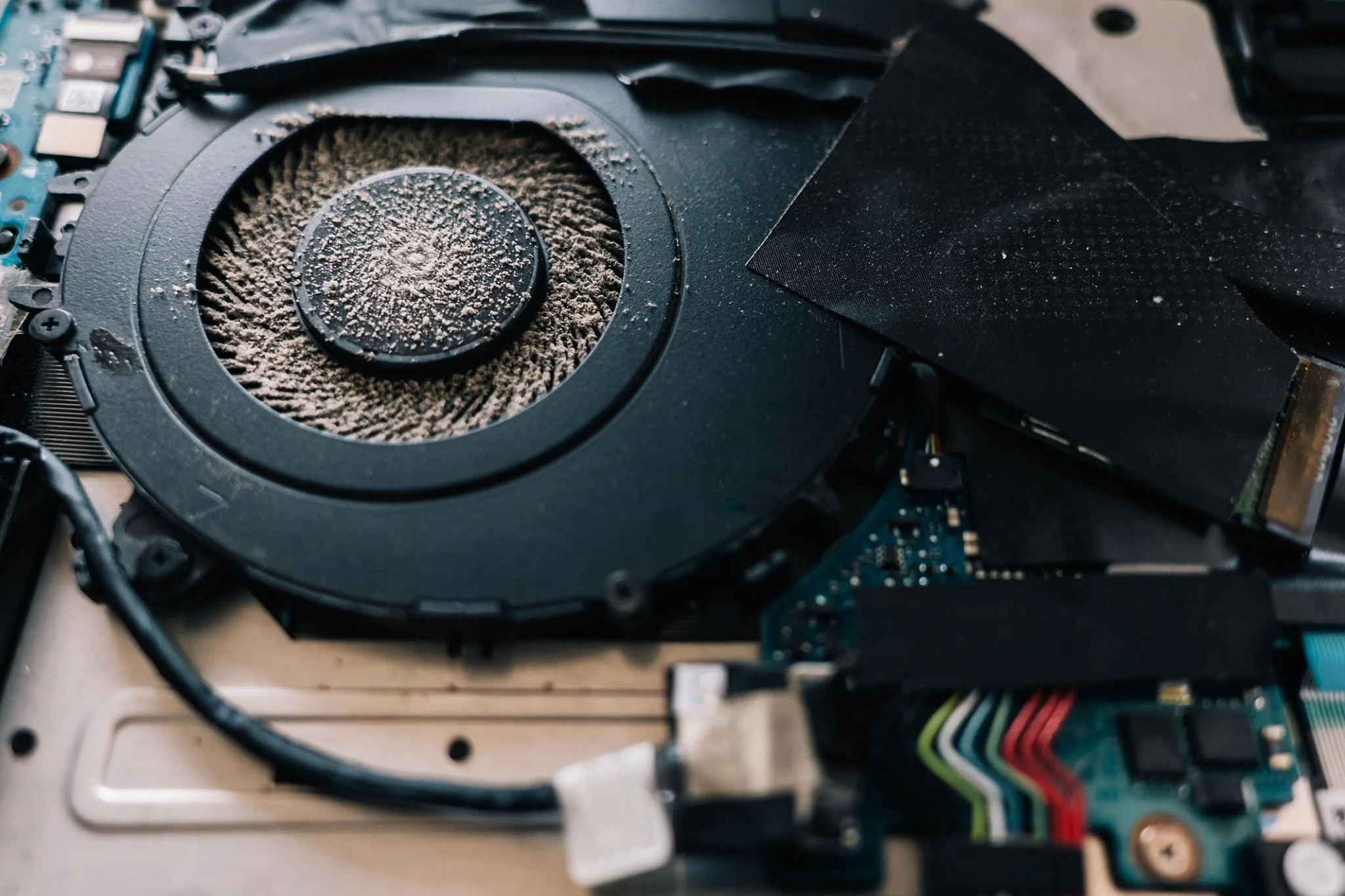
Over time, dust collects inside your laptop’s vents and fan blades, restricting airflow. When air can’t move freely, the fan spins faster and louder trying to compensate. Think of it like trying to breathe through a clogged straw — your system works harder just to stay cool.
Overheating Due to Heavy CPU or GPU Usage
Running demanding tasks like video editing, gaming, or multiple browser tabs pushes your processor hard. When CPU or GPU temperatures spike, your laptop’s cooling system kicks into overdrive. The fan ramps up aggressively to pull heat away, which is why you’ll notice noise during intensive workloads.
Failing or Worn-Out Fan Bearings
Fans have small internal bearings that wear down over years of use. A grinding, rattling, or clicking sound — rather than a steady whoosh — usually points to a failing bearing. At that stage, the fan is mechanically damaged and no amount of cleaning will fix it.
Poor Ventilation From Surface Placement
Soft surfaces like beds, pillows, or blankets block your laptop’s bottom vents. Without proper airflow underneath, heat builds up fast and the fan has to work constantly. Hard, flat surfaces always give better airflow results.
Spot the Warning Signs of a Problematic Laptop Fan
A. Constant or Unusually Loud Spinning Noise
A fan that never quiets down — even when your laptop is idle — is a red flag. Normal fans ramp up under load, then settle back down. Persistent loud spinning usually means the cooling system is working overtime.
B. Fan Running at Full Speed During Light Tasks
If your fan blasts at full throttle while you’re just browsing or typing a document, something’s off. This often points to background processes hogging CPU resources or a blocked air vent forcing the fan to compensate.
C. Laptop Feeling Hot to the Touch
Excessive heat — especially near the bottom or keyboard — means the fan isn’t cooling things down effectively. Thermal paste degradation or clogged vents are common culprits here.
D. System Slowdowns or Unexpected Shutdowns
| Symptom | Likely Cause |
|---|---|
| Freezing during normal use | CPU thermal throttling |
| Sudden shutdowns | Overheating protection kicking in |
| Sluggish performance | Fan failing to maintain safe temps |
E. Grinding or Rattling Sounds From the Fan
This is the most urgent warning sign. Grinding or rattling typically means a damaged bearing or debris caught in the fan blades. Continuing to run your laptop in this state risks permanent hardware damage.
Simple Fixes You Can Do Right Now to Reduce Fan Noise
Clean the Vents Using Compressed Air
Dust buildup is the #1 culprit behind noisy fans. Grab a can of compressed air and spray short bursts into the vents — usually located on the bottom and sides of your laptop. Do this every 3–6 months to keep airflow clear.
Place the Laptop on a Hard, Flat Surface
Soft surfaces like beds and couches block the vents underneath your laptop, trapping heat and forcing the fan to work harder. Always use a desk, table, or a dedicated laptop stand. A $15 cooling pad can make a noticeable difference.
Close Unnecessary Background Apps and Processes
Too many open apps quietly eat up CPU and RAM, pushing temperatures higher. Here’s a quick fix:
- Windows: Open Task Manager (Ctrl + Shift + Esc) → End tasks hogging resources
- Mac: Open Activity Monitor → Quit power-hungry processes
Target apps with high CPU or memory usage first.
Adjust Power Settings to Reduce Performance Load
Running your laptop on “High Performance” mode constantly maxes out the CPU, which spikes heat levels.
| Setting | Effect on Fan |
|---|---|
| Power Saver | Quieter, cooler |
| Balanced | Moderate noise |
| High Performance | Loudest, hottest |
Switch to Balanced mode for everyday tasks to keep things calm.
Use Built-In Tools to Diagnose and Control Fan Activity
Monitor CPU and GPU Temperature With Free Software
Keeping an eye on your temperatures tells you exactly why your fan is screaming. These free tools do the job well:
| Tool | Best For |
|---|---|
| HWMonitor | Detailed CPU/GPU temps |
| MSI Afterburner | GPU monitoring + fan control |
| Core Temp | Lightweight CPU tracking |
Anything consistently above 90°C under load is a red flag worth addressing immediately.
Check Task Manager for Resource-Hungry Programs
Press Ctrl + Shift + Esc to open Task Manager, then click the CPU column to sort by usage. Look for:
- Browser tabs running heavy scripts
- Background update processes
- Antivirus scans happening at the wrong time
- Bloatware quietly eating resources
Right-click any suspicious process and hit End Task to see if your fan calms down.
Update Drivers to Improve Fan Management
Outdated drivers can mess with how your system handles thermal management. Focus on these:
- Chipset drivers — control how power flows through the system
- GPU drivers — directly affect heat output
- BIOS/firmware updates — sometimes include improved fan curve profiles
Head to your laptop manufacturer’s support page and grab the latest versions rather than relying on Windows Update alone.
Know When to Seek Professional Repair for Your Laptop Fan
Fan Noise Persists After All DIY Fixes
If you’ve cleaned the vents, updated drivers, and adjusted power settings but the fan still sounds like a jet engine, something deeper is going on. A persistent loud noise often points to a failing bearing inside the fan motor — something no software fix can solve.
Physical Damage or Broken Fan Blades Detected
Cracked or chipped fan blades create an unbalanced spin, causing that grinding or rattling sound. You can sometimes spot damage through a vent with a flashlight. Don’t run the laptop long with a broken fan — it’ll make things worse fast.
Overheating Continues Despite Cleaning and Optimization
If your laptop still hits dangerously high temperatures after a thorough cleaning, the heat pipes may be clogged internally or the thermal solution has completely failed. Signs to watch for:
- Sudden shutdowns under light workloads
- CPU consistently running above 90°C
- Hot spots near the keyboard or bottom panel
Motherboard or Thermal Paste Issues Require Expert Attention
Old, dried-out thermal paste between the CPU and heatsink tanks cooling efficiency badly. Replacing it requires careful disassembly. Similarly, a warped heatsink or damaged motherboard traces need a technician with proper tools — one wrong move can permanently damage your board.
A loud laptop fan is usually your computer’s way of telling you something needs attention. From dust buildup and blocked vents to heavy software loads and aging hardware, there are plenty of reasons your fan might be working overtime. The good news is that many of these issues are easy to tackle on your own — a good cleaning session, adjusting your power settings, or closing background apps can make a surprising difference. Built-in tools can also help you keep an eye on temperatures and fan behavior so small problems don’t turn into big ones.
That said, knowing when to call in a professional is just as important as the DIY fixes. If your fan is grinding, rattling, or your laptop is overheating even after trying everything, don’t wait too long to get it checked out. Catching a fan problem early can save you from a much more expensive repair down the road. Give your laptop a little love, and it’ll run quieter and last a whole lot longer.
1 thought on “Laptop Fan Making Loud Noise”