When your laptop connects to Wi-Fi but websites refuse to load, or the wireless network disappears completely, it can interrupt work, study and everyday tasks. The problem may come from your router, laptop settings, Windows or macOS, an outdated driver, or even a weak wireless signal. Before assuming that your laptop needs repair, try the safe checks in this guide.
This article explains what to do when your laptop Wi-Fi not working problem interrupts your day, how to identify the likely cause, and when professional help may be needed. Follow the steps in order and stop if a step requires changes you are not comfortable making.
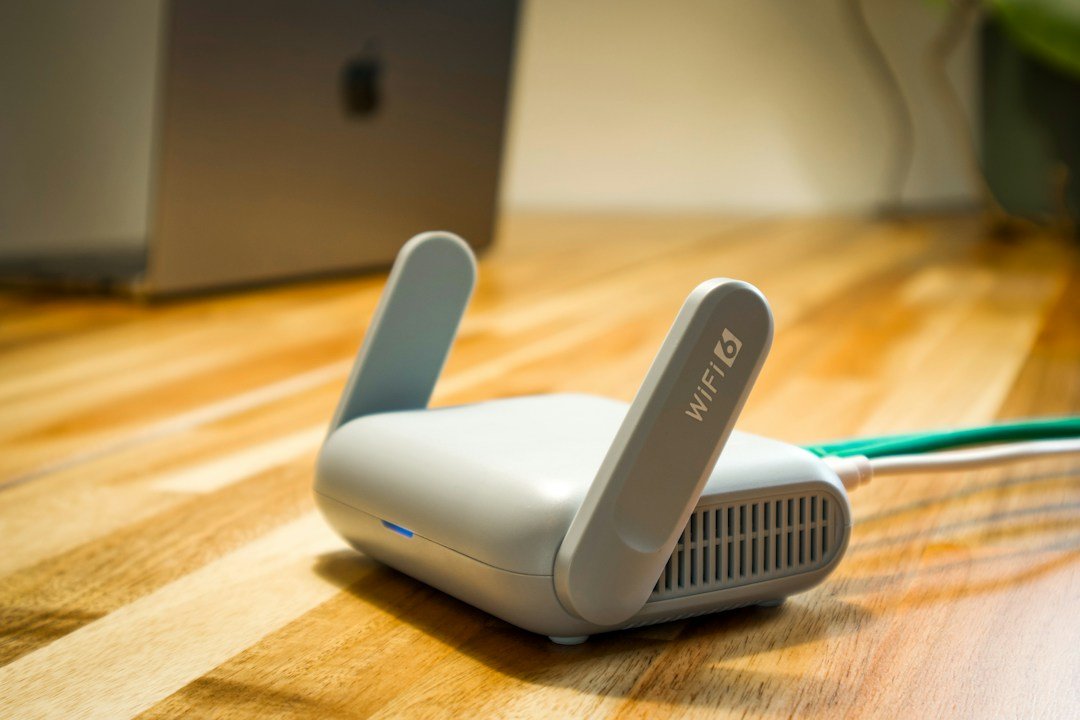
1. Laptop Wi-Fi Not Working? Check Your Laptop or Router
First, connect another device, such as a phone or tablet, to the same Wi-Fi network. If the other device also cannot access the internet, the issue may be with the router, internet service provider, or broadband connection rather than your laptop.
- If every device is offline, check the router’s power and internet indicators.
- If only your laptop is affected, continue with the laptop checks below.
- If your laptop connects to a mobile hotspot but not your home or office Wi-Fi, the router settings or network compatibility may be involved.
This simple comparison can save time and prevent unnecessary changes to your laptop.
2. Make Sure Wi-Fi Is Turned On
It is easy to disable wireless networking accidentally. On Windows, select the network icon near the clock and make sure Wi-Fi is enabled. Also check that Airplane mode is turned off. Some laptops have a dedicated wireless key or a function-key combination that controls wireless connectivity.
On a Mac, open System Settings, select Wi-Fi and turn it on. If Wi-Fi is missing from the menu or cannot be enabled, restart the Mac and check again. Do not repeatedly press unfamiliar function keys; check your laptop’s manual if you are unsure which key controls wireless networking.
3. Restart Your Laptop and Router
A restart can clear temporary network errors. Save your work, shut down or restart the laptop, and then test the connection again. If the router appears to be the problem, unplug its power cable, wait around 30 seconds, reconnect it and allow a few minutes for the connection to return.
Avoid pressing the router’s small Reset button unless you intend to restore factory settings. A factory reset can erase your Wi-Fi name, password and provider configuration, and may require your internet provider’s setup details.
4. Forget the Wi-Fi Network and Connect Again
A saved wireless profile may contain an old password or incorrect network information. Forgetting the network and joining it again can resolve this issue.
On Windows 11: Open Settings, choose Network & internet, then Wi-Fi and Manage known networks. Select your network and choose Forget. Return to the Wi-Fi list, select the same network and enter the correct password.
On macOS: Open System Settings, choose Wi-Fi, and find the saved network details. Use the option to forget or remove the network, then reconnect and enter the password again. Menu wording can vary by macOS version.
Check that you are selecting the correct network name, especially in buildings where several nearby networks have similar names.
5. Run the Windows Network Troubleshooter
Windows includes diagnostic tools that can detect common connection problems. Open Settings and go to System, then Troubleshoot and Other troubleshooters. Find Network and Internet or the relevant network troubleshooter and run it. Follow the on-screen recommendations.
The troubleshooter may identify a disabled adapter, a configuration issue or a problem with the default gateway. Read each proposed action before accepting it. If the tool says it could not identify the problem, that does not necessarily mean the wireless hardware is faulty; continue with the next checks.
6. Update or Reinstall the Wireless Network Driver
A damaged, outdated or incompatible wireless driver can cause Wi-Fi to disconnect, disappear or work unreliably. On Windows, right-click Start and open Device Manager. Expand Network adapters and look for the wireless adapter. Its name may include Intel, Realtek, Qualcomm, MediaTek or another manufacturer.
If an update is available, use Windows Update or download the correct driver from your laptop manufacturer’s official support website. Match the driver to your exact laptop model and Windows version. Avoid third-party driver download sites and driver-updater utilities that you cannot verify.
If the issue began immediately after a driver update, the Roll Back Driver option may be available in the adapter’s Properties. Reinstalling a driver can also help, but make sure you have a way to download the correct replacement first, such as Ethernet or a phone hotspot.
7. Check the Wi-Fi Signal and Router Placement
A laptop may show a connected network but still have slow or unstable internet when the signal is weak. Move closer to the router and test again. Thick walls, floors, metal cabinets, microwaves and other wireless devices can interfere with Wi-Fi performance.
If the router offers both 2.4 GHz and 5 GHz networks, try the other band. The 2.4 GHz band often reaches farther, while 5 GHz can provide faster speeds at shorter distances. Newer routers may also use 6 GHz, which requires compatible devices and may have a shorter practical range.
If the signal is poor throughout the property, ask your internet provider about router placement, mesh Wi-Fi or a suitable access point rather than immediately replacing the laptop.
8. Check VPN, Proxy and Security Software Settings
A VPN, proxy configuration or security application can sometimes prevent websites from loading even when the laptop is connected to Wi-Fi. If the problem started after installing or updating one of these tools, temporarily disconnect the VPN and test a trusted website. Check the proxy settings in your operating system and make sure they match your work or network requirements.
Do not permanently disable your firewall or antivirus protection to test a connection. If a security product appears to be blocking network access, review its notifications and settings or contact its support team. On a company-managed laptop, ask your IT administrator before changing VPN, proxy or security policies.
9. Reset Network Settings Carefully
If the earlier steps do not work, a network reset may remove incorrect network configurations. On Windows, open Settings, go to Network & internet, then Advanced network settings and choose Network reset. Read the warning before proceeding. The reset can remove network adapters and saved network settings, so you may need to reconnect to Wi-Fi and reinstall certain networking software.
On a Mac, there is no single identical reset button for every macOS version. You can renew the DHCP lease in the network’s TCP/IP settings, or remove and re-add the Wi-Fi service if you understand the configuration. If your laptop is managed by an organisation, get approval before resetting its network configuration.
Common Reasons Laptop Wi-Fi Stops Working
Understanding the likely cause can help you choose the right fix. Common reasons include:
- Router or internet outage: Other devices also lose access or the router shows an internet warning.
- Wireless adapter disabled: Wi-Fi cannot be switched on or the adapter is disabled in system settings.
- Driver problem: Wi-Fi disappeared after an operating-system or driver update.
- Weak signal or interference: The connection works near the router but drops at a distance.
- Incorrect saved password: The laptop repeatedly asks for credentials or cannot authenticate.
- Hardware damage: The wireless adapter or its antenna may be damaged, particularly after a drop, liquid exposure or repair.
When Should You Get Professional Laptop Repair?
Consider professional diagnosis if Wi-Fi is missing from system settings, the wireless adapter does not appear in Device Manager, the laptop cannot detect any nearby networks, or the connection keeps failing after the safe software checks. A damaged Wi-Fi card, loose antenna cable, motherboard issue or liquid damage may require physical inspection.
Do not open the laptop or disconnect internal cables unless you have the right experience and tools. Internal components can be damaged by static electricity or incorrect handling. If the laptop is under warranty, check the manufacturer’s service terms before arranging third-party repairs.
If you need help identifying a hardware or software fault, visit JustFix UAE laptop repair in Abu Dhabi for service information and repair assistance. Explain when the issue started, whether other devices connect successfully, and which troubleshooting steps you have already tried.
Frequently Asked Questions
Why is my laptop connected to Wi-Fi but there is no internet?
The laptop may be connected to the router while the router itself has no internet access. Check another device, restart the router, and confirm that your internet service is active. If only the laptop is affected, check its VPN, proxy, DNS and network settings.
Why does my laptop not show any Wi-Fi networks?
Wi-Fi may be disabled, Airplane mode may be on, or the wireless adapter driver may not be working. Restart the laptop, check the wireless controls and inspect the adapter in Device Manager on Windows. If the adapter is missing, professional diagnosis may be required.
Can a Windows update stop Wi-Fi from working?
Yes. An update can sometimes introduce a driver compatibility issue. Check for a newer driver from the laptop manufacturer’s official website or use Roll Back Driver if the option is available and the problem began after an update.
Why does my laptop Wi-Fi keep disconnecting?
Frequent disconnections can be caused by weak signal, router interference, power-saving settings, outdated drivers or a faulty wireless adapter. Test near the router and compare the connection with another device to narrow down the cause.
Should I replace my laptop’s Wi-Fi card?
Not before proper diagnosis. Software, router and antenna problems can look similar to a failed Wi-Fi card. A technician can test the adapter and antenna before recommending a replacement.
Final Advice
When your laptop Wi-Fi is not working, start by checking other devices, confirming that wireless is enabled, restarting the router and reconnecting to the network. Then move on to Windows or macOS diagnostics, driver checks and signal testing. Make changes carefully, keep security protection enabled and avoid factory-resetting your router without the required setup information.
If the wireless adapter is missing or the connection remains unreliable after these checks, arrange a professional diagnosis. Finding the actual cause first is the safest way to avoid unnecessary parts replacement and get your laptop back online.