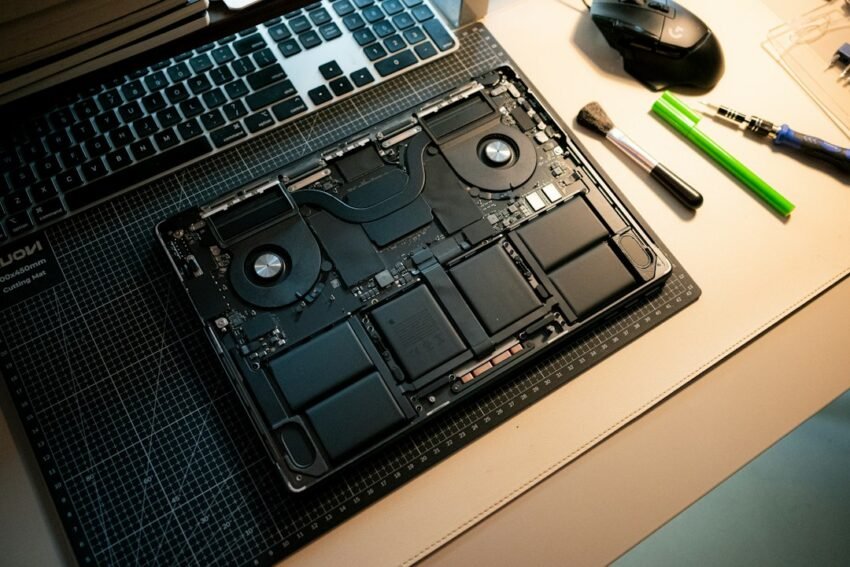
Does your laptop lose charge even when you are doing simple tasks? If your laptop battery is draining fast, the cause may be an ageing battery, high background activity, an incorrect power setting, or a charger that is not working properly. Before paying for a replacement, try the checks in this guide. They can help Windows and Mac users identify common battery-drain problems and decide when professional repair is needed.
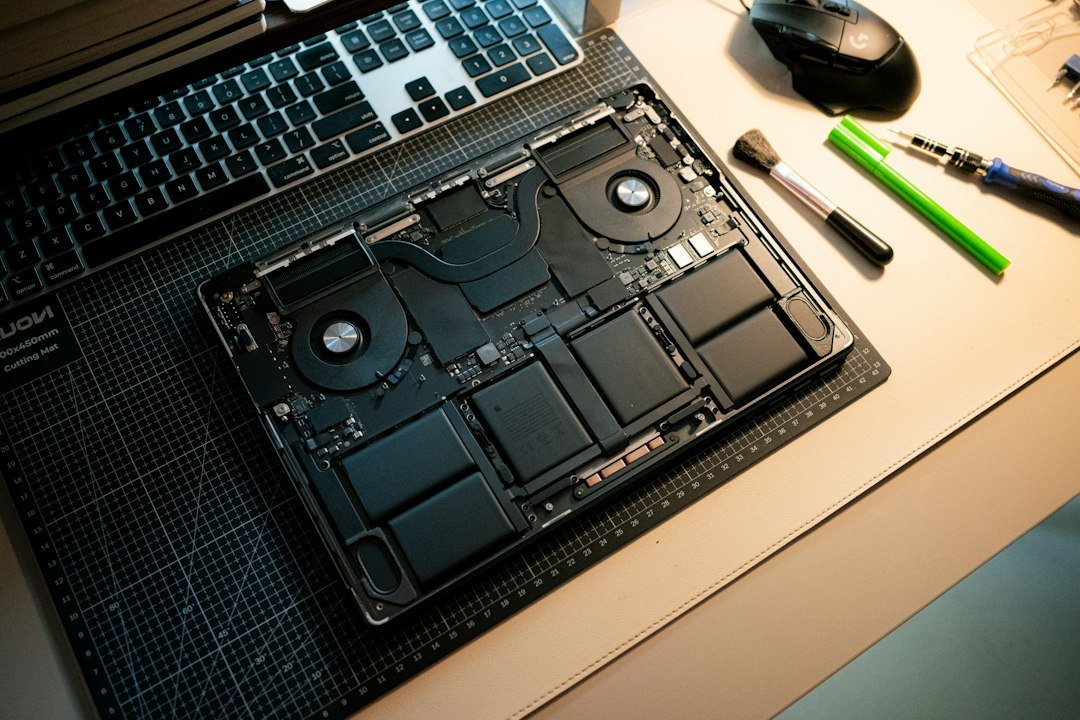
Looking for simple everyday ways to stretch each charge? See our guide to seven daily habits that help your laptop battery last longer. This article focuses on diagnosing the causes of unusually fast battery drain.
Why Is Your Laptop Battery Draining So Fast?
Laptop batteries gradually lose capacity as they go through charge cycles. However, a sudden drop in battery life is not always a sign that the battery has failed. Bright displays, demanding applications, browser tabs, connected accessories, poor ventilation and outdated software can all increase power use.
Start by noticing when the problem happens. If the battery drains quickly only during gaming or video editing, heavy workload may be responsible. If it drops while the laptop is idle or switched off, investigate battery health, sleep settings and possible hardware faults.
12 Ways to Fix a Laptop Battery Draining Fast
1. Check Which Apps Are Using the Most Power
On Windows, open Settings and look for Battery usage to see which apps consume the most energy. You can also use Task Manager to identify unusually busy processes. On a Mac, open Activity Monitor and select the Energy tab. Close applications you do not need, but avoid ending unfamiliar system processes.
2. Reduce Screen Brightness
The display is one of the biggest power consumers in many laptops. Lower brightness to a comfortable level, shorten the screen-off timer and turn off the keyboard backlight when you do not need it. These small adjustments can make a noticeable difference during travel or long work sessions.
3. Enable Battery Saver or Low Power Mode
Windows Battery Saver limits selected background activity and notifications. On macOS, Low Power Mode reduces energy use on supported models. Enable the appropriate mode when you are away from a charger, especially when you only need to browse, write documents or check email.
4. Review Startup and Background Apps
Some programs keep running after you close their windows. Review startup apps in Windows Settings or Login Items on macOS. Disable only applications you recognise and do not need at startup. Also check cloud-sync tools, launchers and messaging apps that may constantly use the processor or network.
5. Disconnect Unused USB Accessories
External drives, USB hubs, phones, lighting accessories and other connected devices can draw power from your laptop. Disconnect accessories you are not using. If battery life improves, reconnect devices one at a time to identify which one has the greatest effect.
6. Check Wi-Fi and Bluetooth Use
Weak wireless signals can make a laptop work harder to maintain a connection. Move closer to your router when possible and turn off Bluetooth when it is not required. Use Airplane Mode only when you do not need wireless connectivity.
7. Update Your Operating System and Drivers
Operating-system updates can include power-management and device-driver fixes. Install updates from Windows Update or macOS Software Update, and obtain laptop-specific drivers from the manufacturer’s official support website. Avoid third-party driver download sites and do not interrupt a firmware update.
8. Check Battery Health
A worn battery stores less energy than it did when new. Windows users can generate a battery report by opening Command Prompt and running powercfg /batteryreport. Open the saved report and compare Design Capacity with Full Charge Capacity. On a Mac, open System Settings, choose Battery and review Battery Health where available. A service recommendation or significantly reduced capacity may indicate that the battery needs professional assessment.
9. Check Sleep, Hibernate and Lid Settings
If your laptop loses a lot of charge in a bag or overnight, it may not be entering the expected sleep state. Review power and lid settings, install pending system updates, and test whether hibernation or a full shutdown makes a difference. Some connected devices and background tasks can prevent proper sleep.
10. Keep the Laptop Cool
High temperatures can affect battery performance and may cause the cooling system to run more often. Use the laptop on a hard, flat surface, keep air vents clear and avoid direct sunlight. If the fan is unusually loud or the laptop becomes hot during light tasks, dust buildup or a cooling fault may need inspection. Do not open the battery compartment unless the device is designed for user servicing.
11. Use the Correct Charger
A damaged, underpowered or incompatible adapter may charge slowly or fail to maintain the battery properly under load. Use the manufacturer’s recommended charger or a compatible model with the correct specifications. Inspect the cable and charging port for visible damage, and stop using a charger that becomes unusually hot, smells burnt or has exposed wiring.
12. Consider Battery Replacement When Health Is Poor
If the laptop still shuts down unexpectedly, loses charge rapidly after software checks, or reports poor battery health, the battery may have reached the end of its useful life. A technician can test battery condition, charging behaviour and the power circuit before recommending a replacement. This helps avoid replacing a battery when the actual fault is elsewhere.
Laptop Battery Tips for UAE Users
Hot environments can make battery and cooling problems more noticeable. In the UAE, avoid leaving a laptop in a parked car, near a sunny window or in direct sunlight. Let a hot device return to a normal operating temperature before charging it, and keep ventilation openings clear. If the laptop becomes unusually hot, swells or gives off an unusual smell, stop using and charging it and arrange a professional inspection. Never press, puncture or attempt to flatten a swollen battery.
When Should You Get Professional Laptop Repair?
Get qualified help if the battery is swollen, the case or trackpad is lifting, the laptop switches off at a high charge percentage, the charging port is loose, or the device becomes extremely hot. A swollen lithium-ion battery is a safety risk: power the laptop down if it is safe to do so, unplug it, keep it away from flammable materials and do not continue using it.
For other battery problems, a proper diagnosis should include battery health, charger output, charging-port condition and power-management checks. If you need help with a laptop issue in Abu Dhabi, see our Laptop Repair Abu Dhabi guide for more information.
Frequently Asked Questions
Why does my laptop battery drain even when I am not using it?
Background apps, connected accessories, network activity or sleep settings may keep using power. Check battery usage, disconnect accessories and test whether the laptop loses charge during a full shutdown as well as sleep.
How do I know if my laptop battery needs replacing?
Warning signs include much shorter runtime, unexpected shutdowns, a battery-health service warning and a large gap between design capacity and full-charge capacity. Swelling requires immediate attention and should never be ignored.
Is it bad to leave a laptop plugged in all day?
Modern laptops manage charging electronically, and many offer battery-protection or charge-limit features. Heat and keeping a battery at a very high charge for long periods can contribute to ageing, so use the manufacturer’s battery-health settings where available.
Can hot weather cause fast battery drain?
High temperatures can stress lithium-ion batteries and increase cooling demands. Keep your laptop ventilated and never leave it in a hot parked car or direct sunlight.
Should I replace the battery or buy a new laptop?
If the laptop otherwise works well and a technician confirms the battery is the problem, replacement may be a practical option. Compare the repair cost, device age, parts availability and any other faults before deciding.
Final Thoughts
A laptop battery draining fast does not always mean you need a new battery. Start with power-hungry apps, brightness, background activity, updates and battery-health checks. If you notice swelling, excessive heat, unexpected shutdowns or charging faults, stop experimenting and arrange a professional diagnosis. Safe troubleshooting can help you restore useful battery life and make a more informed repair decision.
2 thoughts on “Laptop Battery Draining Fast? 12-Step Troubleshooting Guide”