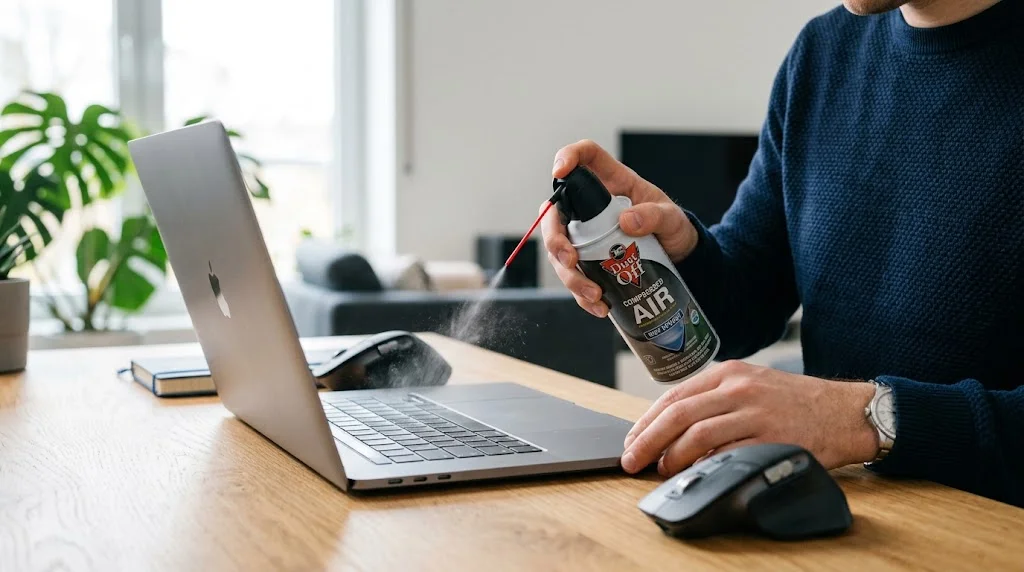
If your laptop is loud, uncomfortably hot, slowing down, or switching itself off, you need to know how to fix laptop overheating before the heat causes lasting damage. The good news is that most cases come from a short list of causes: blocked airflow, dust, heavy background activity, or power settings. Many of them can be sorted out in under an hour with nothing more than a can of compressed air.
This guide walks you through 12 steps, ordered from the simplest and safest to the more involved. You will learn how to tell normal warmth from real overheating, what usually causes it, which fixes are safe to try yourself, and which ones are better left to a technician. There is also a section on UAE conditions, because summer heat and dust make this problem more common here than many guides admit.
Quick Answer: How to Fix an Overheating Laptop
If you want the short version, work through this list in order and stop as soon as the problem clears:
- Save your work, shut the laptop down, unplug it, and let it rest on a hard surface.
- Use it only on a hard, flat surface with the bottom and side vents uncovered.
- Blow dust out of the vents with short bursts of compressed air.
- Close apps and browser tabs that keep the processor busy.
- Switch to a Balanced or power-saving mode.
- Install system updates, and update drivers and BIOS only through your manufacturer’s official tools.
- If it still runs hot after these basics, stop and have a technician inspect the fan, heatsink and thermal paste. Do not open the laptop yourself unless you are experienced.
The rest of this article explains each step, why it works, and what to avoid.
Is Your Laptop Really Overheating?
Before you change anything, it helps to know what you are dealing with. Laptops pack powerful processors into thin cases, so some warmth is completely normal. Apple states that its Mac laptops can get warm during normal use, and that models with fans switch them on automatically to cool critical components. Fan noise on its own is therefore not proof of a fault.
Normal Warmth vs. Real Overheating
A laptop is usually fine if it:
- Gets warm while gaming, editing video, video calling, or installing large updates
- Runs the fan louder for a few minutes and then settles down
- Feels a little warm while charging
A laptop is more likely to have a real problem if it:
- Runs the fan at full speed even when you are only typing or reading
- Feels very hot to the touch, especially around the keyboard or underneath, while doing light tasks
- Slows down sharply or stutters during simple work
- Crashes apps, restarts without warning, or shuts off by itself
Processors can safely run hot under heavy load, often into the 80s °C, but the exact safe limit depends on the chip. The outer case, however, should never be painful to touch. If it is, treat it as a warning.
Common Warning Signs
- Constant loud fans. The cooling system is working hard but not keeping up.
- Thermal throttling. To protect itself, the processor lowers its speed, so everything feels sluggish.
- Unexpected shutdowns or restarts. Many laptops shut down automatically when temperatures get too high. This is a protection feature, not a random glitch.
- A burning or hot-plastic smell. Stop using the laptop and have it checked.
- Hot spots or a bulging base. A swollen battery is a safety issue, covered in Step 11.
How to Check the Temperature
You do not need special equipment for a first check.
- Use the touch test. Feel the underside, the keyboard area, and the air coming out of the vents. Very hot air from the vents during light use points to a cooling problem.
- Watch CPU activity. On Windows, press Ctrl + Shift + Esc to open Task Manager. On a Mac, open Activity Monitor from Applications > Utilities. Apple recommends checking CPU activity in Activity Monitor if your laptop gets warm during light tasks or its fans run for a long time.
- Use a monitoring tool for exact numbers. Free utilities such as HWiNFO or HWMonitor (download them only from their official websites) show CPU temperature in real time. Note the idle temperature and the temperature under load, so you can compare after each fix.
Do not rely on a single number from one tool. Safe limits differ between processors, so check your laptop maker’s specifications for your exact model if you want to know the real ceiling.
Why Laptops Overheat: The Most Common Causes
Heat is a normal by-product of computing. Overheating happens when heat is produced faster than the cooling system can remove it. That usually comes down to one or more of the causes below.
| Cause | Typical signs | Can you fix it yourself? |
| Blocked vents (soft surface, too close to a wall) | Hot on a bed or sofa, fine on a desk | Yes, easy |
| Dust in vents and fan | Loud fan, hot air barely coming out, gets worse over months | Often, from the outside with compressed air |
| Heavy or runaway software | High CPU use in Task Manager or Activity Monitor with little open | Yes |
| Power or performance settings | Heat and fan noise even on simple tasks | Yes |
| Outdated drivers, firmware, or OS bugs | Started after an update or has persisted for a long time | Usually, through official update tools |
| Dried-out thermal paste | Older laptop, high temperatures even after cleaning | No, technician recommended |
| Failing fan or damaged heatsink | Grinding, rattling, or silent fan; very high temperatures | No, technician required |
| Faulty charger or ageing battery | Extreme heat while charging, swelling, short battery life | No, technician required |
| Hot environment | Problems mainly in summer, in cars, or near windows | Yes, change the conditions |
Blocked Airflow
Many laptops draw cool air in through vents on the underside and push hot air out through the sides or back. A bed, pillow, sofa, or even your lap can seal those intake vents. Apple’s guidance is blunt on this point: use the laptop on a stable work surface that allows good ventilation, and do not use it in bed, on a pillow, or under bedding.
Dust and Debris
Dust, pet hair, and lint collect on the fan and between the metal fins of the heatsink. Dell lists obstructed fans or air vents among the common causes of overheating and loud fan noise. Even a thin layer can reduce airflow, and the problem builds slowly, which is why many people only notice it when the fan is already roaring.
Heavy Workloads and Background Activity
Games, video editing, and video calls push the processor hard. But background tasks matter too: dozens of browser tabs, cloud-sync tools, update services, antivirus scans, and sometimes malware can keep the processor busy even when you are not doing anything demanding.
Settings, Drivers, and Firmware
Performance power modes let the processor run faster and hotter. Outdated drivers or firmware can also cause poor power management on some models. These problems are often invisible, which is why checking software before blaming hardware saves time.
Ageing Thermal Paste
Thermal paste is the compound between the processor and the heatsink that helps move heat away from the chip. Over several years it can dry out and lose effectiveness. You cannot confirm this without opening the laptop, so it is a suspect only after the simpler causes have been ruled out.
Hardware Faults
A worn-out fan, a damaged heat pipe, a failing charger, or an ageing battery can all produce excess heat. These are repairs, not settings, and they are the reason some overheating cases do not respond to any DIY fix.
Before You Start: Safety Rules
A few ground rules keep you and the laptop safe:
- Back up important files first. If the laptop shuts down suddenly while overheated, unsaved work can be lost.
- Power off and unplug before touching vents. Remove USB devices and docks too.
- Stay on the outside of the case. Cleaning the vents and changing settings are safe. Opening the case, removing the heatsink, or handling the battery is not a beginner job.
- Never use a household vacuum cleaner on the vents. It can generate static electricity that may harm sensitive electronics.
- Stop at any sign of a swollen battery. A bulging base, a keyboard lifting up, or a trackpad that no longer clicks properly can mean the battery is swelling. Stop using and charging the laptop and take it to a technician.
- Do not promise yourself a fix. Each step below helps in some situations and not in others. If one does not work, move to the next, and do not keep forcing a hot laptop to run.
How to Fix Laptop Overheating Step by Step
Step 1: Shut Down and Let the Laptop Cool
Save your work, shut the system down properly, and unplug the charger. Remove any USB drives, adapters, or docking stations, because connected devices add a little heat of their own. Leave the laptop on a hard, flat surface for 15 to 20 minutes.
This does not fix the cause, but it gives you a safe starting point. It also confirms whether the laptop runs normally when cool. If it overheats again within minutes of starting, the cause is more likely physical (airflow, dust, fan) than software.
Step 2: Move to a Hard, Flat Surface
Place the laptop on a desk or table where the bottom and side vents are not covered. Dell advises exactly this: a flat, hard surface where the bottom and side air vents stay unobstructed. If your laptop sits very flat against the desk, raising the back slightly (even a stand or a sturdy book under the rear edge) can help air reach the intake vents. Keep a few centimetres of clear space around the exhaust vents and keep it away from walls or cushions.
Also check for simple blockers: a sticker over a vent, a case that wraps the base, or a keyboard cover. Apple notes that you should not put anything over the keyboard or into the ventilation openings of a Mac laptop.
Step 3: Clear the Vents With Compressed Air
Dust is one of the most common and most fixable causes. With the laptop switched off and unplugged:
- Find the vents on the underside, sides, and back.
- Hold the can of compressed air upright and spray in short bursts, not one long blast. Holding the can upside down can release liquid propellant.
- Aim at the vents from a few centimetres away. If you can see the fan blades, hold them still gently with a soft tool while you spray, because a fan spun at very high speed by a strong air blast can be damaged. This is a general precaution rather than a manufacturer rule.
- Wipe dust from the outside of the case with a dry microfibre cloth.
- Restart the laptop and compare temperatures under the same workload.
Dell’s own support guidance recommends compressed air for removing dust and debris from air vents, dust filters, and cooling fan fins. Do not poke into the vents with sharp tools, and do not use a vacuum cleaner.
If a lot of dust comes out, it is a good sign that airflow was restricted. If very little comes out and the laptop is still hot, move on to the software steps.
Step 4: Find and Close High-CPU Apps
If the fan is loud while you are doing very little, something may be using the processor heavily.
- Windows: Press Ctrl + Shift + Esc, open the Processes tab, and click the CPU column to sort by usage.
- Mac: Open Activity Monitor, choose the CPU tab, and sort by % CPU.
Look for apps or background processes that stay high for a long time. Common causes include a browser with many tabs, a video call, cloud storage syncing a large folder, a system update, or an antivirus scan. Close what you do not need. If you do not recognise a process, search its exact name before ending it, because stopping the wrong system process can cause problems.
If your laptop is both hot and slow, our guide to speeding up a slow laptop covers software causes in more depth.
Do not worry if the processor spikes briefly when you open a program. Short spikes are normal. A sustained high reading with nothing demanding open is the signal to investigate.
Step 5: Switch to a Balanced Power Mode
Performance modes let the processor run harder, which produces more heat. A more balanced mode usually lowers temperatures with a small loss in peak speed.
- Windows 11: Open Settings > System > Power & battery and set Power mode to Balanced or a power-saving option.
- Windows 10: Open Control Panel > Hardware and Sound > Power Options and choose a Balanced plan.
- Manufacturer apps: Many brands include their own tool, such as Dell Power Manager, Lenovo Vantage, MyAsus, or HP Command Center. Switching from a Performance or Turbo profile to Balanced or Quiet can reduce heat.
- Mac: On recent versions of macOS, Low Power Mode is available in the battery settings. Menu names differ between versions, so search Settings for “power” if you cannot find it.
After changing the setting, restart and test again. Gamers and video editors may notice the difference, since these modes limit peak performance.
Step 6: Trim Startup Programs and Browser Tabs
Programs that launch automatically at startup keep working in the background. Reducing them lowers your baseline temperature.
- Windows: In Task Manager, open the Startup apps (or Startup) tab and disable programs you do not need at login.
- Mac: Open System Settings > General > Login Items and remove apps you do not need to start automatically.
Browsers deserve special attention. Each tab, extension, and video player uses resources. Closing unused tabs and removing extensions you do not use often reduces CPU load noticeably.
Step 7: Update Your System, Drivers, and BIOS Carefully
Updates sometimes include fixes for power and thermal behaviour. Apple lists installing all available Mac software updates as the first tip for managing operating temperature, and Dell recommends keeping Windows updated as part of its fan troubleshooting.
- Operating system: Run Windows Update or macOS Software Update and restart afterwards.
- Drivers: Use Windows Update or your manufacturer’s official support tool. Avoid random “driver updater” programs from unknown websites.
- BIOS or firmware: Only update the BIOS using the file from your laptop maker’s official support page for your exact model, and only if the release notes or the manufacturer’s support team suggest it for your problem. A failed BIOS update can leave the laptop unable to start. Keep the laptop plugged in and do not interrupt the process.
If you are not comfortable updating firmware, skip the BIOS step. It is rarely the first thing to try.
Step 8: Scan for Malware
Malicious software, including programs that secretly use your processor, can keep the CPU busy and the fans running. Run a full scan with Windows Security or a reputable antivirus tool, and on a Mac check Activity Monitor for unfamiliar processes that stay busy. Remove software you do not recognise, and be cautious with “PC cleaner” or “speed booster” utilities, which can be unnecessary themselves.
Step 9: Limit Maximum Processor Performance (Optional)
If your laptop still runs hot during normal work, you can cap how hard the processor is allowed to work. This is a trade-off: lower temperatures in exchange for lower peak speed.
On Windows, open Edit power plan > Change advanced power settings > Processor power management, then adjust Maximum processor state (for example, to 99% or lower) or set Processor performance boost mode to Disabled. The effect varies by processor and manufacturer, and these options do not appear on every laptop.
Write down the original settings so you can restore them. This step suits people who mainly browse and use office apps. It is a poor fit for gaming or video editing, where you will notice the lost performance.
Step 10: Use a Cooling Pad Wisely
A cooling pad lifts the laptop off the surface and adds fans to move air across the base. It can help a laptop that runs hot during gaming or long video sessions, especially if you work on a desk and the case has intake vents on the bottom.
Keep realistic expectations:
- A pad improves airflow but does not remove dust from inside the laptop.
- Choose one that matches your laptop’s size, and make sure it does not block the intake vents.
- It is an accessory, not a cure. If the fan or thermal paste is the real problem, the pad will only mask it for a while.
Step 11: Check the Charger and Battery
Some warmth while charging is normal, because the battery and power circuitry produce heat. If the laptop becomes unusually hot when plugged in, check the basics:
- Use the charger designed for your model. A cheap or mismatched adapter can behave badly.
- Inspect the cable and plug for damage, discolouration, or a burning smell.
- Test with a different compatible charger, if you have one, to see if the temperature changes.
- Check the case for any swelling.
If the base is bulging, the keyboard is lifting, the trackpad is raised, or you notice a chemical smell, stop using the laptop and stop charging it. Do not press, bend, or puncture the battery. Take it to a qualified technician. A swollen battery is a safety risk and not something to fix at home.
Step 12: Run the Manufacturer’s Diagnostics
Built-in hardware tests can reveal a failing fan or sensor. Dell suggests running a hardware checkup with SupportAssist or its preboot diagnostics when basic troubleshooting has not identified the cause of a fan problem. Most other major brands offer a similar tool, so check the support page for your exact model.
On an Apple laptop, Apple advises that if issues continue, you close and reopen the lid or restart the computer, and that Intel-based Macs may need an SMC reset. If you still have temperature problems after that, Apple recommends contacting them.
A failed fan test, a fan that never spins, or a temperature that climbs immediately at idle are all signs that the problem is hardware, not software.
Windows Laptops vs. MacBooks: What Is Different?
The causes are broadly similar, but the details change.
| Windows laptop | MacBook | |
| Fan control | Often through the manufacturer’s app and power mode | Managed automatically by macOS; fans switch on automatically where fitted |
| Quick CPU check | Task Manager (Ctrl + Shift + Esc) | Activity Monitor |
| Typical software fixes | Power plan, startup apps, drivers, BIOS | Software Update, Login Items, Low Power Mode |
| Reset options | Manufacturer diagnostics | Restart; SMC reset on Intel-based Macs |
| DIY opening | Varies widely by model | Specialist screws and delicate parts, so best left to a technician |
Some MacBook Air models have no fan at all. Those rely on passive cooling, so they can feel warm and may reduce performance sooner under heavy loads. That is a design trait, not necessarily a fault.
Internal Cleaning and Thermal Paste: What Technicians Do
If you have cleaned the vents, ruled out software, and the laptop still runs very hot, the cause may be inside: a clogged heatsink, a weak fan, or thermal paste that has dried out over time.
A professional overheating service typically involves:
- Opening the laptop safely and inspecting the fan, heat pipes, and heatsink
- Cleaning dust from the fan and heatsink fins
- Replacing the thermal paste when it has degraded
- Testing the fan and, if needed, replacing it
- Checking the battery and charging circuit
- Running the laptop under load to confirm temperatures are stable
You will find step-by-step teardown videos online, and some people do carry out this work at home. It carries real risks, though: broken clips and ribbon cables, stripped screws, static damage, too much or too little paste, and a voided warranty on newer machines. If you are not experienced with laptop hardware, it is usually safer and cheaper to let a technician do it than to risk a motherboard repair.
Mistakes to Avoid When Fixing an Overheating Laptop
- Using a vacuum cleaner on the vents. It can create static and does not clear the internal fins effectively.
- Spraying liquids or cleaners into the vents. Moisture and electronics do not mix.
- Using the laptop on a bed or sofa “just for a minute.” Minutes of blocked airflow are enough to raise temperatures quickly.
- Ignoring repeated shutdowns. They are the laptop protecting itself. Repeatedly forcing it to restart does not solve anything.
- Piling on cheap fixes. Buying a cooling pad, a new charger, and a cleaning app at once makes it hard to know what worked.
- Overclocking or turning off thermal protections. This pushes the laptop beyond its design limits.
- Opening the case without the right tools or guidance. This is the fastest way to turn a simple heat problem into an expensive repair.
- Leaving the laptop in a hot car. Apple specifically warns against this because temperatures in parked cars can exceed its recommended range.
Laptop Overheating in the UAE: Extra Considerations
Local conditions can make overheating more likely, even on a healthy laptop. Apple’s guidance for Mac laptops is to use them where the ambient temperature is between 10°C and 35°C and the relative humidity is between 0% and 95% (non-condensing). In summer, outdoor temperatures in much of the UAE regularly exceed 35°C, so some practical habits are worth adopting:
- Never leave a laptop in a parked car, even briefly.
- Keep it out of direct sunlight, including near windows, on balconies, and by car windscreens.
- Work in an air-conditioned room when you are running demanding tasks.
- Check vents more often in dusty environments, such as near open windows, construction, or on carpeted floors with pets.
- Avoid charging in direct heat, since charging adds warmth of its own.
These habits do not replace repairs, but they remove an unnecessary load from the cooling system.
When to Stop DIY and Call a Technician
Some signs mean you should stop troubleshooting and get the laptop inspected. Continuing to use it can make things worse.
| What you notice | What it may mean | Suggested action |
| Overheats within minutes of starting, even after cleaning vents | Failing fan, clogged heatsink, or dried-out thermal paste | Professional inspection |
| Fan never spins, grinds, or rattles | Faulty fan | Stop heavy use and get it checked |
| Frequent shutdowns or restarts from heat | Severe overheating or a hardware fault | Back up data and get it inspected |
| Swollen base, lifted keyboard, or burning smell | Possible battery failure | Stop using and charging; get it checked right away |
| Very hot while charging, even with a known-good charger | Charging circuit or battery problem | Professional diagnosis |
| Overheating after a drop or liquid spill | Damaged internal components | Professional diagnosis |
| Still under warranty | Opening it yourself may void cover | Contact the manufacturer or an authorised provider |
If your laptop falls into one of these groups, a professional check is the safest route. JustFix UAE’s laptop repair service page lists overheating fixes among its services for Mac and Windows laptops, and the page also states that it offers a free diagnosis and pickup and drop-off. Check the page for the current details before you book. For Apple notebooks, the MacBook repair service page is the closer match.
If you want to understand the other issues that commonly bring laptops in for repair, our guide to common laptop problems and fixes in Abu Dhabi is a useful companion. MacBook owners can also read our overview of common MacBook problems and expert fixes.
How to Prevent Laptop Overheating
Once your laptop is running cool again, a few habits keep it that way:
- Keep vents clear. Check them every few months, and more often if you live or work somewhere dusty or have pets. There is no universal cleaning schedule, so go by what you see.
- Use a hard, flat surface. A desk or a rigid lap tray beats a bed, sofa, or blanket every time.
- Keep the system updated. Install software updates from official sources.
- Limit what starts automatically. Review startup apps a couple of times a year.
- Close tabs and apps you are not using. This reduces constant background load.
- Use Balanced mode for everyday tasks. Reserve performance modes for when you need them.
- Keep the laptop out of heat. Avoid cars, direct sun, and cramped bags while it is running.
- Back up your files regularly. Heat-related failures are easier to survive when your data is safe.
- Treat early warnings seriously. A louder fan and slower performance over months are cheaper to fix than a failed component.
Frequently Asked Questions
Is it normal for a laptop to get hot?
Yes, to a degree. Laptops warm up during gaming, video editing, video calls, large updates, and charging, and Apple notes that its Mac laptops can get warm during normal use. It becomes a concern if the case is painfully hot during light tasks, the fan runs at full speed all the time, performance drops sharply, or the laptop shuts down on its own.
What temperature is too hot for a laptop?
There is no single number that applies to every laptop. Processors can safely run hot under heavy load, often into the 80s °C, but the real limit depends on the exact chip. Check the specification for your processor and model. As a rule of thumb, repeated throttling, crashes, or shutdowns mean the laptop is struggling to stay within safe limits regardless of the number on a monitoring tool.
Can overheating permanently damage a laptop?
Long-term overheating can shorten the life of the battery, processor, storage, and other components. A brief hot spell from a demanding task usually does not cause lasting harm, but repeated overheating, frequent shutdowns, or a laptop that stays hot at idle should be investigated rather than ignored.
Why does my laptop get so hot when charging?
Some heat is expected, because the battery and power circuits produce warmth while charging, especially if you are also doing demanding work. If the laptop becomes unusually hot, check that you are using the right charger, inspect the cable, and look for a swollen base. Persistent extreme heat while charging may point to a charger or battery fault and deserves a professional check.
Do cooling pads really work?
They can help, particularly during gaming or long, demanding sessions, by lifting the laptop and moving more air across the base. How much they help depends on your laptop’s design. They do not clean dust from inside, and they will not repair a failing fan or dried thermal paste, so use one alongside the other steps rather than instead of them.
Can I use a vacuum cleaner to clean my laptop vents?
It is best not to. A household vacuum can generate static electricity that may harm delicate components, and it does not clear dust effectively from deep between the fins. Short bursts of compressed air, with the laptop off and unplugged, are the usual recommendation, and Dell’s support guidance suggests compressed air for vents and fan fins.
Will my laptop shut down if it overheats?
Often, yes. Many laptops are designed to slow down first and then shut down or restart if temperatures stay too high, in order to protect the hardware. If this happens more than once, do not keep restarting and carrying on. Back up your files, work through the steps above, and have the laptop checked if shutdowns continue.
Conclusion
Knowing how to fix laptop overheating comes down to working in the right order: confirm the problem is real, improve airflow, clear dust from the vents, reduce unnecessary processor load, and use sensible power settings and updates. These steps solve a large share of cases without opening the laptop.
If the heat comes back, or you see warning signs such as repeated shutdowns, a fan that does not spin, a swollen base, or a burning smell, stop troubleshooting and let a technician take a look. When you want professional help in Abu Dhabi, the JustFix UAE laptop repair page is the place to see the service and get in touch.