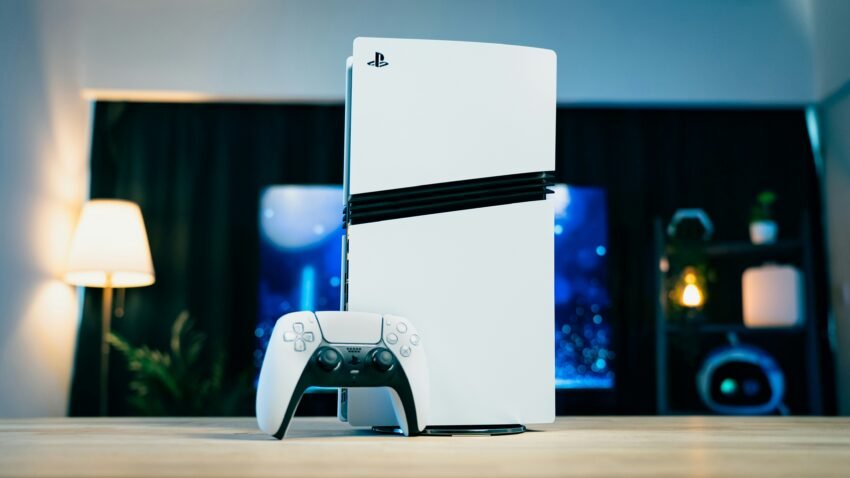
Your PlayStation 5 turns on, but your television displays “No Signal” or a black screen. Before assuming that your console is broken, check the HDMI connection, TV input, display settings and other external factors. A PS5 no signal on TV problem can have several causes: a faulty cable, an incorrect input, an intermediary device, a video-output setting or a hardware fault in the console.
This guide explains nine safe checks you can perform at home, how to recognise possible HDMI port damage, and when to arrange professional PlayStation repair in Abu Dhabi.
Why Does Your PS5 Turn On but Show No Signal?
A PS5 can appear to start normally while the TV receives no usable video signal. The fault may be anywhere in the connection between the console and the display.
- Incorrect TV input: The television is displaying another HDMI source.
- Loose HDMI connection: The cable is not fully seated at the console or TV.
- Faulty HDMI cable: A damaged cable may interrupt the video signal.
- TV HDMI port issue: The selected input on the television may not be working correctly.
- Intermediary equipment: A soundbar, receiver, splitter or capture device may affect the connection.
- Display settings: A resolution or video-output setting may not work with the connected display.
- PS5 HDMI port damage: Bent contacts, a loose connector or physical impact may prevent a stable connection.
- Internal console fault: A problem elsewhere in the video-output circuit can produce similar symptoms.
9 Ways to Fix a PS5 No Signal Problem
1. Check the Correct HDMI Input on Your TV
Start with the simplest possibility: your television may be using the wrong input. Use your TV remote to open the Source or Input menu. Select the HDMI port where the PS5 is connected. For example, if the cable is plugged into HDMI 2, make sure HDMI 2 is selected on the television.
If your TV has several HDMI ports, try another available input. Check the television manual to identify ports intended for enhanced gaming or higher-resolution features. If the picture appears after selecting another input, the original source selection or HDMI input may have been the issue.
2. Inspect and Reconnect the HDMI Cable
A loose connection can interrupt video output even when the console and TV are switched on. Turn off the PS5 and television before reconnecting the cable. Carefully disconnect it from both devices, then reconnect it securely.
- Look for cuts or visible damage on the cable.
- Check both connector ends for damage.
- Make sure the connection remains securely seated.
- Look for sharp bends or pressure near the connectors.
Do not force the plug into either device. HDMI connectors should fit without excessive pressure. If the cable looks damaged or the connection remains unreliable, test with another known-working HDMI cable.
3. Test Another HDMI Cable
A cable can fail internally even when its outer covering looks normal. If you have another suitable HDMI cable, use it to connect the PS5 directly to the TV. The cable supplied with the console is a useful starting point. For higher-performance video features, use an appropriate compatible cable.
Turn off both devices, replace the cable, select the correct TV input, then turn the television and console back on. If the replacement cable works consistently, the original cable may be faulty. If there is still no picture, continue with the next checks.
4. Connect the PS5 Directly to the TV
Some gaming setups use additional equipment between the console and television. AV receivers, soundbars with HDMI pass-through, HDMI splitters, capture cards and HDMI switches introduce more possible points of failure.
Temporarily remove these devices and connect the PS5 directly to an HDMI input on the television. Use a known-working cable and select the correct source. If the picture returns, reconnect the additional equipment one device at a time. This can help identify which connection or device is causing the issue.
5. Restart the PS5 and TV Completely
A temporary power or display-handshake issue can sometimes be cleared by restarting both devices. Turn off the PS5 completely rather than leaving it in Rest Mode. Turn off the television, disconnect their power cables, and wait for around 20 minutes. Reconnect the power cables, turn on the TV, select the correct HDMI input, and then start the PS5.
If the picture returns, monitor the connection. If the problem repeatedly comes back, there may be an underlying cable, display or console fault. Sony also recommends a complete power cycle as part of its picture and sound troubleshooting guidance.
6. Test the PS5 with Another TV or Monitor
This is one of the most useful checks because it helps separate a television problem from a console problem. If another compatible TV or monitor is available, connect the PS5 directly to it using a known-working HDMI cable.
- PS5 works on the second display: The original TV, its HDMI input or its settings may be involved.
- PS5 shows no signal on both displays: The cable, console connection, video output or internal hardware may need further investigation.
- The picture appears and disappears: An intermittent cable or connector problem is possible.
A second-display test does not identify the exact failed component, but it gives you better information before arranging a repair.
7. Start the PS5 in Safe Mode and Check Video Output
If the console still produces no picture, Safe Mode may help when the problem is related to video-output settings or software. First, make sure the console is fully turned off. Press and hold the PS5 power button for about three seconds to switch it off. Wait until the power indicator stops flashing.
Press and hold the power button again. Release it after the second beep, which occurs approximately seven seconds after the first. Connect the controller using a USB cable and press the PS button. If Safe Mode appears, select Change Video Output and follow the on-screen instructions. Sony documents options such as Change Resolution and Change HDCP Mode for troubleshooting blank-screen problems.
Be careful with other Safe Mode options. Some operations can delete data or restore the console to its original state. Do not select Reset PS5 or Reinstall System Software simply to test the HDMI connection. If Safe Mode does not appear, try a known-working cable and display before concluding that the console has an internal fault.
8. Check the TV’s Firmware and Display Compatibility
The television or monitor may need a firmware update, especially if the problem started after changing display equipment or video settings. Check the TV manufacturer’s support instructions for available software updates. Also review the display’s HDMI settings and compatibility information.
If the PS5 picture works at a lower resolution but not at a particular high-resolution or refresh-rate setting, the connected display, cable or intermediary equipment may not support the selected configuration. When the PS5 home screen is visible, review its video output settings under Settings → Screen and Video → Video Output. Use a supported setting for your TV or monitor.
9. Inspect the PS5 HDMI Port for Visible Damage
If different cables and displays produce the same result, the console’s HDMI connection may need professional inspection. With the PS5 switched off and disconnected from power, look at the HDMI socket from the outside. Use good lighting, but do not insert tools or objects into the port.
- Bent or visibly damaged contacts.
- A connector that appears tilted or displaced.
- A socket that feels unusually loose.
- A cable that does not fit securely.
- A picture that cuts out when the connector is moved.
- Visible damage following a fall or impact.
Do not repeatedly wiggle the HDMI cable to make the picture appear. This can put additional stress on an already damaged connector. A damaged port is not the only possible hardware cause: internal video circuitry or other board-level faults can create similar symptoms. A technician needs to test the console before deciding which component requires repair.
Signs Your PS5 HDMI Port May Be Damaged
A damaged HDMI port becomes more likely when several external checks have already been completed and the problem remains. The symptoms below are clues, not a confirmed diagnosis.
| Symptom | What it may indicate |
|---|---|
| Cable feels loose in the console | Possible connector or socket damage |
| Visible bent or broken contacts | Physical HDMI port damage |
| Picture appears only at certain cable angles | Possible loose or damaged connection |
| No picture on multiple displays with known-working cables | Possible console-side fault |
| Problem started after the console or cable was pulled | Possible physical damage |
Should You Replace the PS5 HDMI Port Yourself?
Replacing a PlayStation HDMI port is not a simple plug-and-play task. The connector is soldered to the console’s motherboard and requires suitable electronics repair equipment and experience. An incorrect attempt can damage the circuit board, nearby components or connector pads. It may also make an otherwise repairable fault more difficult to resolve.
Avoid forcing a cable into a damaged socket, using metal objects to clean inside the port, applying heat to the connector, or opening the console without the correct tools and knowledge. Do not order replacement parts before identifying the console model and fault.
If the port is physically damaged, arrange a professional inspection. If the port looks normal, the technician may still need to investigate other parts of the video-output circuit.
When Should You Get Professional PS5 Repair in Abu Dhabi?
Consider professional diagnosis when the PS5 shows no picture on more than one compatible display, you have tested a known-working HDMI cable, the HDMI socket is visibly damaged or loose, the picture repeatedly flickers or disappears, Safe Mode cannot be displayed after basic checks, or the problem began after a fall or impact.
If you are in Abu Dhabi, explore JustFix UAE’s PS5 gaming console repair service. You can also view its gaming console repair services. Before approving any repair, ask for the fault diagnosis and the proposed repair work. The correct solution depends on the actual condition of the HDMI connector and the console’s internal components.
Final Thoughts
A PS5 no signal on TV problem does not automatically mean that the HDMI port is broken. A wrong TV input, loose cable, faulty HDMI lead, intermediary device or incompatible display setting can also interrupt the picture.
Start with the simple checks: confirm the TV input, reconnect the cable, test another HDMI lead, bypass additional equipment and try another display. If the issue continues or you notice physical damage, stop experimenting and arrange a professional diagnosis. Identifying the actual fault before replacing parts is the safest way to avoid unnecessary repairs and get your PlayStation back to normal.
Frequently Asked Questions
1. Why does my PS5 turn on but show no signal on my TV?
The cause may be an incorrect TV input, loose or faulty HDMI cable, display compatibility issue, intermediary device, damaged HDMI port or an internal console fault. Test another cable and display before assuming the console needs repair.
2. Can a faulty HDMI cable cause a PS5 black screen?
Yes. A damaged or unreliable HDMI cable can interrupt the video connection. Test with a known-working compatible cable and make sure both ends are securely connected.
3. How do I know if my PS5 HDMI port is damaged?
Visible bent contacts, a loose socket, an unstable cable connection or picture interruptions when the connector moves may indicate damage. A technician must inspect and test the port to confirm the fault.
4. How do I start my PS5 in Safe Mode if the screen is black?
Turn off the console, then press and hold the power button again until you hear the second beep, approximately seven seconds after the first. Connect your controller using USB and press the PS button. If Safe Mode still does not appear, check the cable and display.
5. Will changing the PS5 resolution fix a no-signal problem?
It may help if the issue is caused by an incompatible video-output setting. Use Safe Mode’s Change Video Output option and follow Sony’s instructions. It will not repair a physically damaged HDMI port.
6. Can I repair a PS5 HDMI port at home?
It is not recommended unless you have specialist electronics repair skills and equipment. The HDMI connector is soldered to the motherboard, and an incorrect repair can cause further damage.
7. Where can I get PS5 HDMI repair in Abu Dhabi?
You can contact JustFix UAE’s gaming console repair service to ask about diagnosis and repair options in Abu Dhabi.