A laptop keyboard that suddenly stops responding can interrupt work, study, and everyday tasks. Some problems are caused by simple settings or dust, while others point to a damaged keyboard, liquid exposure, or an internal connection issue. If your laptop keyboard is not working, these checks can help. For persistent faults, professional laptop keyboard repair Abu Dhabi may be needed to inspect the keyboard, cable or internal hardware.
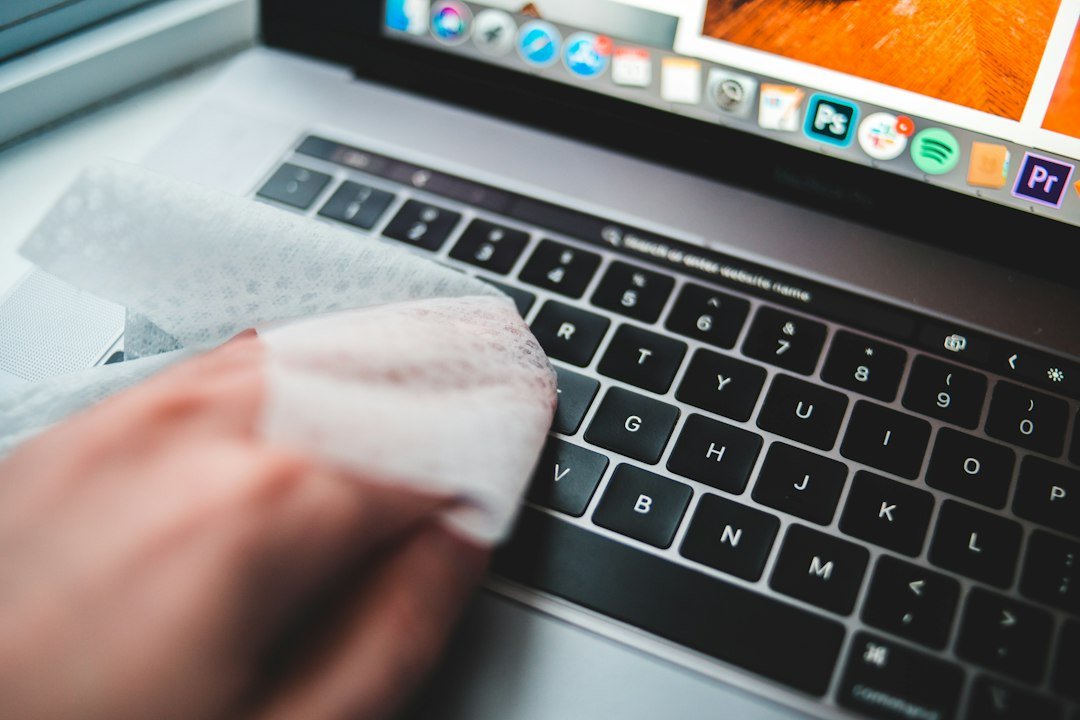
This guide explains common keyboard problems, practical troubleshooting steps for Windows laptops and MacBooks, warning signs that need attention, and when to arrange laptop repair in Abu Dhabi.
Why Is Your Laptop Keyboard Not Working?
Keyboard faults can affect every key or only a few keys. Common causes include:
- Dust and debris: Small particles can stop individual keys from moving or registering properly.
- Outdated or faulty drivers: A driver problem can prevent Windows from recognising the keyboard correctly.
- Software or settings issues: Filter Keys, an incorrect keyboard layout, or a temporary operating-system glitch may affect typing.
- Liquid damage: Water, coffee, and other spills can cause keys to stick, behave unpredictably, or stop working.
- Loose internal connection: The keyboard ribbon cable may have become loose or damaged.
- Physical wear: Repeated use, impact, or a damaged key mechanism can lead to unresponsive keys.
7 Safe Ways to Troubleshoot a Laptop Keyboard
1. Restart Your Laptop
A temporary software issue may stop keyboard input. Save your work using a mouse or touchpad, restart the laptop, and test the keys again. If the keyboard works after restarting but fails repeatedly, investigate drivers or software that may be causing the issue.
2. Check the Keyboard Layout and Settings
On Windows, check Settings > Time & language > Language & region and confirm that the correct keyboard layout is selected. Also open Settings > Accessibility > Keyboard and check whether Filter Keys has been enabled accidentally. Turn it off temporarily if you do not need it, then test typing.
3. Test an External USB Keyboard
Connect a USB keyboard. If the external keyboard works normally while the built-in keyboard does not, the problem may be limited to the laptop’s keyboard, its cable, or its related hardware. This test is useful, but it does not identify the exact failed component.
4. Check and Update the Keyboard Driver
On Windows, right-click Start, open Device Manager, and expand Keyboards. If a warning icon appears, investigate the device status. You can try updating the driver through Windows Update or the laptop manufacturer’s official support page. Avoid downloading drivers from unfamiliar websites.
5. Clean Around the Keys Carefully
Turn the laptop off and disconnect its charger. Use a soft, dry, lint-free cloth and, where appropriate, gentle compressed air to remove loose debris. Keep the laptop at a suitable angle and follow the manufacturer’s cleaning guidance. Do not pour liquid onto the keyboard or force keycaps off, because many laptop keys are fragile.
6. Check Whether the Keyboard Works Before Windows Loads
If you are comfortable doing so, check whether the keyboard responds on the laptop’s sign-in screen or in the manufacturer’s built-in diagnostics. If it fails outside your usual Windows session too, a hardware fault becomes more likely. Do not change BIOS settings just to test the keyboard.
7. Stop Using the Laptop After a Liquid Spill
If liquid has entered the keyboard, shut the laptop down, disconnect the charger, and do not keep pressing keys to test it. Do not use a hair dryer or apply heat. Arrange a professional inspection as soon as possible; powering a wet device can increase the risk of electrical damage and corrosion.
When Do You Need Professional Laptop Keyboard Repair?
Arrange a professional diagnosis if several keys remain unresponsive after basic checks, keys type the wrong characters, the keyboard works intermittently, or there are signs of liquid or physical damage. A technician can inspect the keyboard, internal ribbon connection, and related components to determine whether cleaning, reconnection, or keyboard replacement is appropriate.
Forcing keys, opening the laptop without the right tools, or attempting an unverified repair can make the damage worse. Laptop designs differ, and some models require significant disassembly to replace a keyboard safely.
Laptop Keyboard Repair Abu Dhabi: When to Get Help
If you are in Abu Dhabi and your built-in keyboard still does not work, JustFix UAE can help you explore the next repair step. Start with a proper diagnosis so the cause is identified before parts are replaced. Visit the laptop repair service page to learn more and request assistance.
Frequently Asked Questions
Why has my laptop keyboard suddenly stopped working?
A temporary software issue, incorrect setting, driver problem, loose keyboard connection, or hardware damage can cause sudden failure. Restart the laptop and test with an external keyboard to help narrow down the cause.
Can I fix a laptop keyboard that has only a few faulty keys?
Sometimes. Dust or a setting may affect individual keys, but damaged key mechanisms or liquid exposure may require professional repair or keyboard replacement. Avoid removing keycaps unless the manufacturer confirms they are user-removable.
Will an external keyboard work if my laptop keyboard is broken?
Often, yes. A compatible USB or Bluetooth keyboard can be a temporary workaround if the laptop itself is functioning and the operating system recognises the external device.
Is a laptop keyboard damaged by water repairable?
It depends on how much liquid entered the laptop and whether other components were affected. Switch the laptop off, disconnect power, and arrange an inspection. Do not turn it back on just to check whether it still works.
Final Thoughts
A laptop keyboard problem does not always mean the keyboard needs replacing. Restarting the device, checking settings, testing an external keyboard, and carefully removing loose debris can help identify simple issues. If the fault continues or liquid is involved, stop experimenting and get a professional diagnosis. The right repair starts with finding the actual cause.
1 thought on “Laptop Keyboard Not Working? 7 Safe Fixes and Repair Advice”